How to use BBRouter
BBRouter lets you build electronic circuits on a breadboard on your screen, switch them on, and see what they do, before you build them for real. You can't burn a part or short a battery here, so try things out.
No account yet? bbrouter.com/try opens the editor without one. What you build there stays in that browser; create an account from there and it becomes a project of your own, My first circuit.
Your screen
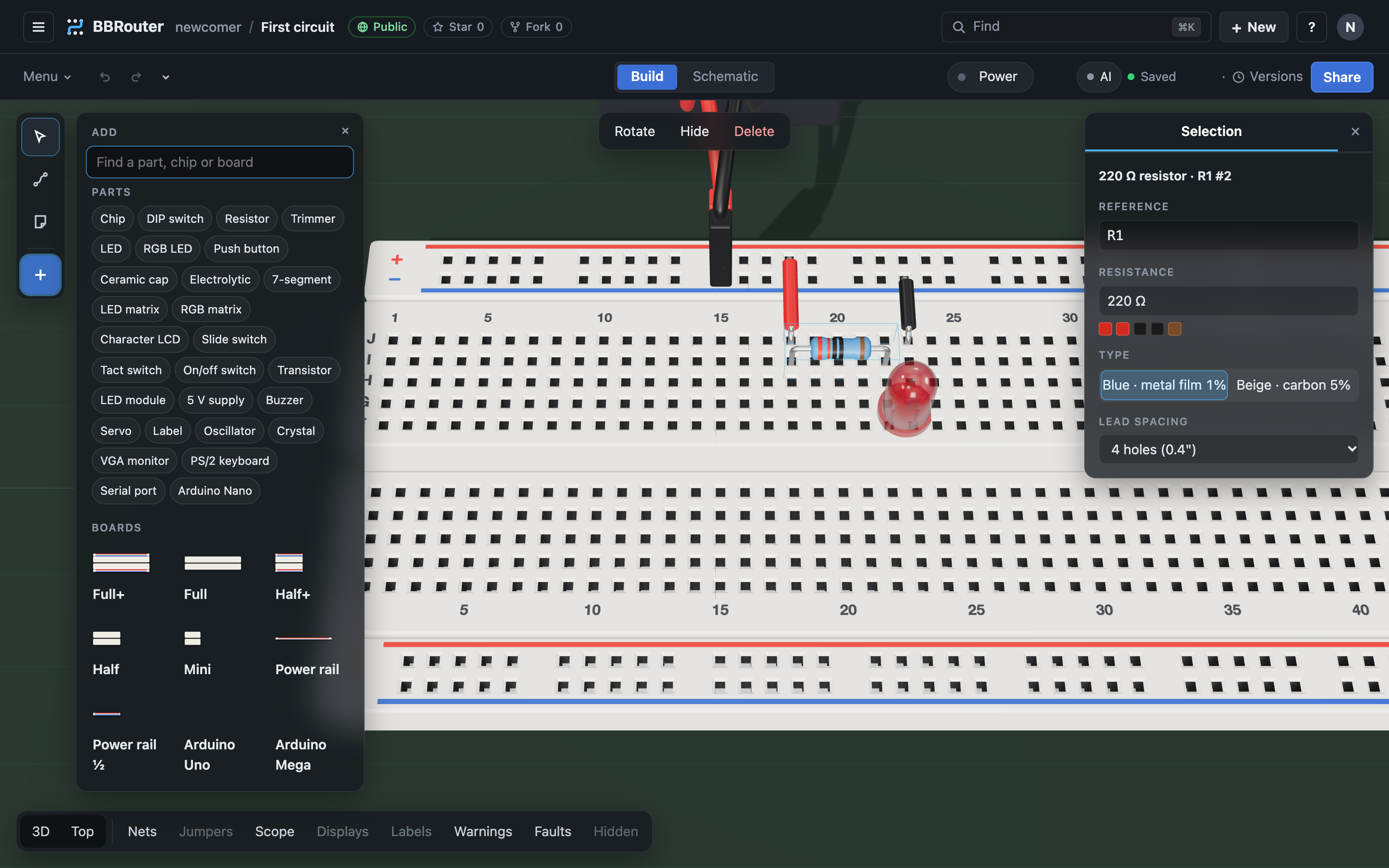
- The header. The same as on every page. At the left, ☰ (Home, your projects, the forum, the guide, pricing and what's new), then whose project is showing and its name (click the name to open another project), whether it's Public or Private, Star, and Fork (a copy of the project, yours to change). At the right, Find (⌘ K), + New for a new project, ? for help (the keyboard shortcuts, the guide, the forum) and your account (your profile, Settings, your plan, and the language and theme).
- The toolbar, under it. The project's Menu (its settings, importing and exporting, the build sheet, versions and branches, examples, the tour), Undo and Redo; Build and Schematic in the middle; then Power, AI, Saved, Versions, Tour (when the project has a tour) and Share. In a narrow window, ⋯ holds what doesn't fit. Notices, like your plan's room or a new release, show as a line under the toolbar.
- The tools, on the left. Select (V) picks and moves things. Wire (W) draws wires. Note (N) pins a note on the board. + opens the library: the parts and boards you can add.
- The panel, on the right. It shows what you selected, with its settings. Its tabs also hold the Nets, your Notes and the Controls of a running circuit.
- The buttons at the bottom. 3D and Top change the view. Nets, Jumpers, Scope and Displays each show or hide one thing. Labels shows or hides the labels you put on the board (it's greyed out until the project has one: add a Label from the library). Warnings lists what looks wrong without even turning the power on, like a chip with no power, a lead in no hole or boards on top of each other; it counts them, and clicking one shows where it is. Faults circles a running circuit's shorts and floating lines (see Finding mistakes), and Hidden shows the wires and parts you hid (H) faintly, to pick and show again.
- On a phone. The toolbar keeps Build and Schematic, Power, the Menu and Undo; ⋯ holds the rest: Redo, Find, Versions, the tour and Share. At the bottom, the buttons with nothing to show (no jumpers, no labels, no warnings…) leave the bar.
Looking around: drag with the right mouse button (or drag an empty spot) to turn around the board, drag with the middle button (or hold ⇧ and drag with the right one) to slide it, and scroll to zoom. On a trackpad, slide two fingers to slide the board, hold ⌥ and slide two fingers to turn around it, and pinch to zoom. On a phone or tablet, drag one finger to slide the board, drag two fingers to turn around it and tilt it, pinch to zoom, and twist two fingers to turn it round. Top looks straight down, which is easiest for wiring.
How a breadboard works
A breadboard is full of holes, and metal clips under the holes join some of them together. Parts in joined holes are connected, without any soldering.
- Strips. Each short column of 5 holes is one strip: the 5 holes are joined. The strips are numbered along the board, and the rows are lettered A to J.
- The channel. The gap down the middle splits each column into two strips, A–E and F–J. Chips sit across it, so each of their pins gets its own strip.
- The rails. The long lines along the edges, marked + (red) and − (blue or black), are joined all along. They carry the power: + is 5 volts and − is ground (0 volts).
Your first circuit: light an LED
You'll build the "hello world" of electronics: a light-emitting diode (LED) that turns on when the power does.
- Start a new project. Click + New in the header. Its page opens: give it a name, keep Blank, and press Create project. You get one empty breadboard.
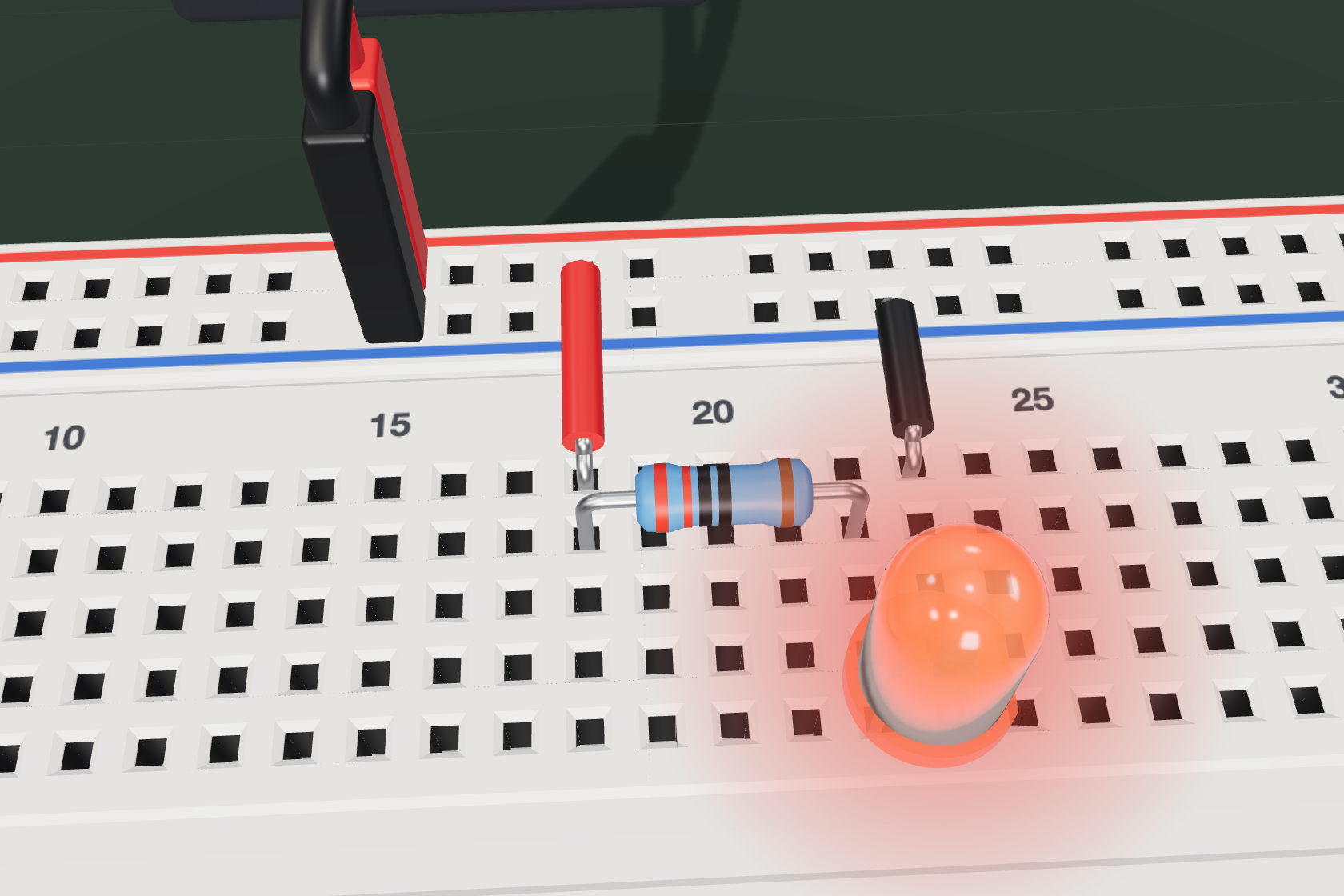
- Add the power. Press P (or click +) to open the library. Under Parts, click 5 V supply, then click a hole on the top + rail. Its red lead goes in + and its black lead in −, the rail just below.
- Add a resistor. In the library, click Resistor, then click a hole in row I, the second row from the top rails (for example I18). Its other lead lands 4 holes along, in I22. A resistor slows the current down, so the LED doesn't get too much.
- Add an LED. Click LED, then click the hole in row F under the resistor's second lead (F22). Holes F to J of a strip are joined, so the LED's first leg, its long leg (the + side, called the anode), touches the resistor. Its short leg lands in the next strip (23).
- Draw two wires. Press W for the wire tool. Click the hole on the + rail right above the resistor's first strip, then the top hole of that strip (J18): that's one straight wire. Then wire the top hole of the LED's short-leg strip (J23) to the − rail hole right above it. Press Esc when you're done.
- Switch it on. Click Power in the toolbar. The LED lights up. Click Power again to switch it off.
It didn't light up? Check that the LED's long leg is on the resistor's side, that every lead is in a hole (a red lead end means it isn't), and that both wires are in the right strips. The Faults button (see below) can help.
Parts
Open the library with P or +. Parts lists the parts you can place, and Boards the breadboards. For a real chip, click Chip, then pick which one (like 74LS00) in the list below. The list groups them by family: 74LS, 74HC, CD4000 (CMOS chips, like the CD4011 or CD4017) and others such as the 555. Or type a name or chip number in the search box to find it quickly.
- Place: click a part in the library, then click a hole. It follows the pointer until you drop it, then it's selected. ⇧-click to drop one and keep another in hand. The next one of a kind comes with the settings of the last one you placed or changed.
- Move: with Select (V), drag it. Drag a lead's end to move just that lead to another hole.
- Turn: press R (or ⇧ R to turn the other way).
- Copy, paste, delete: ⌘ C, ⌘ V, ⌘ D (duplicate), and ⌫ (Backspace) to delete.
- Settings: select a part to see its settings in the panel, like a resistor's value, an LED's color, or a chip's number. Its Reference (like R1 or U3) is its name in the circuit: two parts can't share one.
Some parts you'll use:
- Resistor: limits how much current flows. Its colored bands show its value, in ohms (Ω).
- LED: lights up when current flows from its long leg (+) to its short leg (−).
- RGB LED: a red, a green and a blue LED in one lens, sharing their long leg. Light them together to mix colors: red and green make yellow, all three make white.
- Push button: connects while you hold it down. While the power is on, press its round cap to press it; grab its body to move it.
- Slide switch, On/off switch, DIP switch: click them to flip them. A DIP switch can also be set as a number: type Value (127, 0x7F or 0b01111111) and its switches flip to match, ON = 1, with MSB first or LSB first for which end switch 1 is.
- Trimmer: a knob you turn to change a resistance.
- Capacitor (ceramic or electrolytic): stores a little charge. With a resistor it can set how fast something happens.
- 7-segment display, LED module: many LEDs in one part, to show digits or a row of lights.
- Buzzer: beeps while the power is on. An active buzzer sounds its own tone when its + side is high; a passive one plays the note it's driven at, like an Arduino's
tone(). Rings spread from it while it sounds; Sound, at the bottom, mutes them all. - Servo: a small motor whose white arm turns to an angle, from 0° to 180°. It sits on the table and plugs into three holes: brown to −, red to +, orange to the pin that drives it.
- Signal generator: a bench instrument that sits on the table, like the supply, and puts a square wave on its yellow OUT lead: set its frequency (0.1 Hz to 10 MHz), how much of each period it's high (its duty cycle) and its high level in volts. Plug its black GND lead into the circuit's ground. Running off holds OUT low, and is how it starts: while the power's on, its RUN/STOP button starts and stops it, STEP (stopped) sends one pulse, and its lamps show it running and OUT high.
- LED matrix, RGB matrix: a grid of dots, a pin for each row and one for each column (three on an RGB matrix: red, green and blue). A dot lights when its row is high and its column low; light the rows one after another, fast, to show a picture.
- Chip: a whole circuit in a little black box. Pin 1 is marked by a dot or a notch.
Wires
Press W to draw wires.
- Click the hole where the wire starts.
- Click where you want it to turn, if it should go around something (or ⇧-click). ⌫ takes back the last turn.
- Click the hole where it ends.
Select a wire to change its color, its size, or to make it a Dupont jumper (a flexible wire with plugs). Colors don't change how a circuit works, but they help you read it: red for +, black for −, and your own colors for the rest.
Chips
A chip has many pins, numbered around it starting from pin 1, next to the dot or notch. Hover over a chip, or select it, to see the name of each pin.
- Every chip needs power. Its VCC pin goes to + and its GND pin goes to − (on a CD4000 chip, VDD and VSS), with wires to the rails. Without them, nothing happens and BBRouter warns you.
- Look it up. Select a chip to see what it does, and open its datasheet (its official instructions) from the panel. Transistors, Arduino boards, the character LCD and the servo have one too.
- Inputs and outputs. An input pin reads a signal, and an output pin makes one. Two outputs wired together fight each other, which is called a short.
Running your circuit
Click Power to switch the circuit on. BBRouter runs it as if it were real:
- LEDs light up, and displays show their digits.
- Buttons and switches work: press or flip them with the mouse.
- Clocks tick. A 555 timer chip with its resistors and capacitor makes a steady beat.
- The Controls tab shows what's happening, with any warnings.
⏸ pauses the circuit, and Power again switches it off. Your work is never lost when you switch it off.
Seeing signals with the scope
A digital signal is either high (5 V, a 1) or low (0 V, a 0). The Scope shows how signals change over time, like a real oscilloscope.
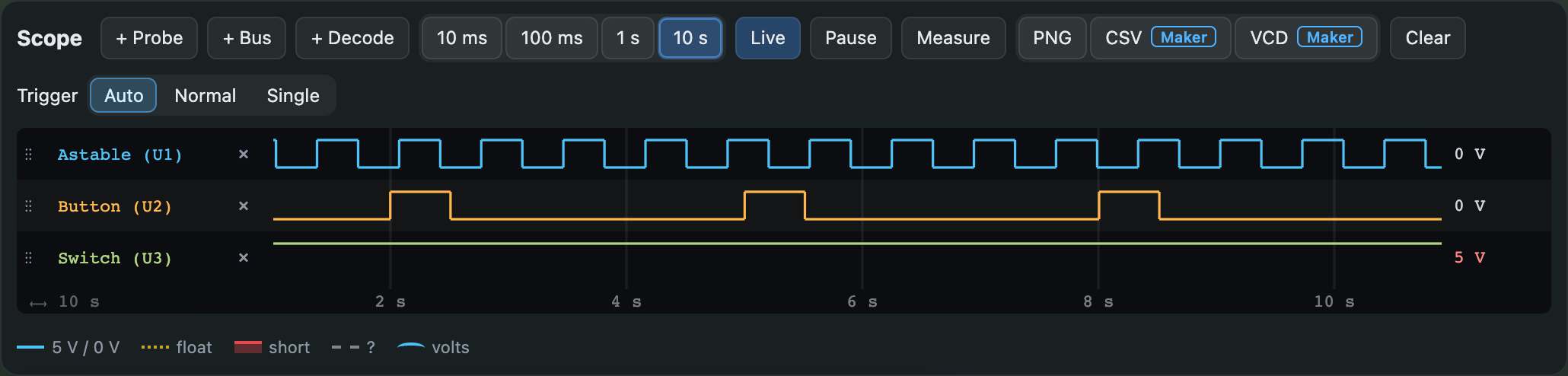
- Click Scope at the bottom, then + Probe, then click a hole. That adds a lane for it.
- Switch the power on. Each lane draws its signal: up for high, down for low.
- Choose how much time to show: 10 ms, 100 ms, 1 s or 10 s.
Besides high and low, the scope shows two problems:
- float (an amber dotted line): nothing drives that line. A chip's input left unconnected reads it as high, but only by accident.
- short (a red band): two outputs fight over that line, one high and one low.
Some holes have a voltage rather than a level: a 555's timing capacitor charging and discharging, a capacitor turning a clock edge into a short pulse, a trimmer's middle pin. Their lane is taller and draws the voltage as a curve between 0 V and the supply, with dashed lines where the chips reading it switch. The value beside it, the cursors and Measure say volts, and the trigger can fire as it rises or falls through a voltage. Hover such a hole on the board to read, say, 3.27 V (charging).
Finding mistakes
- Faults. With the power on, the Faults button counts the shorts (red) and floating lines (amber). Click it to circle every pin on them, and to list them in a pane. Click a line in the list to look at it.
- Burnt parts. Parts burn out as real ones do: an LED with no resistor (or too small a one) across the supply, a resistor taking more power than its ¼ W, a transistor shorting the supply, an electrolytic capacitor put in backwards or on too many volts, a chip on more volts than it takes. It goes in a puff of smoke, turns black, and stops working (as if it were open), for as long as what burns it lasts: fix the circuit, or turn the power off, and it works again. The Controls tab lists each one and why it burnt.
- Short circuit. If + and − are joined (by a wire, a switch or a push button), the supply cuts out, as a bench supply does, and says why. Nothing is damaged.
- Nets. A net is a group of pins that should all be connected. The Nets panel shows which connections are still missing, which wires join nets that should stay apart, and which wiring isn't in any net. Show where points to each problem on the board.
- Undo. Made a mistake? ⌘ Z takes back your last change, and ⌘ U (or ⇧ ⌘ Z) puts it back.
Saving, versions and sharing
- Saving is automatic. Every change is saved on the server as you go. The toolbar says Saved.
- Your projects. Your projects, in the ☰ menu (or your name in the header), lists them on a page of their own: open one there; rename or delete it, or make it private or public, in its Project settings…. A deleted project goes to its Trash tab: Restore brings it back, Delete forever (or Empty the trash) removes it for good. Until then it counts toward your plan's storage.
- Addresses. Each project has its own address, like bbrouter.com/yourname/My-clock (spaces become dashes), to bookmark or open in another tab. bbrouter.com itself lists your projects, and bbrouter.com/yourname is your page: all your projects for you, the public ones for anyone else.
- Private and public projects. The chip next to the project's name says whether it's Private or Public. To make it public, choose Project settings… in the project's Menu, then Public under Who can open it, and Save: anyone with its address can then look at it, read-only, run it, and fork it: Fork, beside its stars, makes a copy of their own, and it's listed on your page. Choose Private there to make it private again. The Free plan keeps 5 projects (branches and the trash aside), one of them private; Maker keeps as many projects, private or not, as you like. A new project is public unless you choose Private when you make it. A branch is private or public as its project is.
- Stars. Star, next to a public project's name, keeps it among the projects you starred, as on GitHub; click again to take your star back. The number beside it is how many people starred it, and your page shows each public project's stars and the projects you starred. To keep that list to yourself, tick Keep the projects I star private in Settings, under Profile: your stars still count on each project.
- Versions. Versions in the toolbar keeps named versions of your project, like "LED works". You can go back to one at any time. The Free plan shows the 5 newest of a project's versions; it keeps them all, and Maker shows every one.
- Try a change safely. Branch to try a change (in the Menu beside the project's name) makes a copy next to your project. Try your idea there, then Commit it into your project, or Discard it. Making a branch is part of the Maker plan; a branch a project already has opens, commits and discards on every plan.
- Fork a project. Fork, beside a project's stars, opens its Fork page, laid out like a new project's: give the copy a name and choose who can open it, then Create fork makes it a project of your own and opens it. You can fork one of yours, someone's public project, or one shared with you by a link. Unlike a branch, a fork doesn't go back into the project it came from. Viewing someone else's project, or an example, is read-only: fork it to change it.
- Add an example. Menu › Examples adds an example's boards, parts and wires to the project you have open, beside what's there and selected, ready to move; one undo takes it back. Its netlist, virtual displays and tour stay the example's. To start a new project from an example instead, use + New and pick An example.
- Notes. Press N and click to pin a note on the board, to explain your circuit or ask a question.
- Share. Share copies a link (bbrouter.com/s/…) to exactly what you're looking at, with your notes. Anyone with the link can open it, read-only, even without an account; to change it, they save a copy of their own. Stop sharing makes every link to the project stop working.
Building it for real
When your circuit works on screen, BBRouter helps you build it on a real breadboard:
- Build sheet (in the Menu beside the project's name): a printable sheet with every part and wire, step by step, and a shopping list.
- Bill of materials: the list of parts to buy, as a spreadsheet.
- Your real breadboard looks just like the one on screen, so you can copy it hole by hole.
Going further
- Schematic. Schematic in the toolbar shows your circuit as a diagram, the way engineers draw it.
- Arduino. Place an Arduino board (Nano, Uno or Mega), upload a program (a sketch) to it from the Arduino IDE, and watch it run with your circuit.
tone()plays notes on a passive buzzer, and the Servo library turns a servo (myServo.write(90)). A project on the Free plan has one Arduino; on Maker, as many as you need. - Chips that remember. Registers, counters and memory chips show and set what they hold, in the panel, while the circuit runs. RAM chips forget what they hold when the power goes off, as real ones do; tick Keep state in a RAM chip's contents to save it in the project instead. A virtual display can show a value floating over the board, or a RAM’s program with the line at its address lit. Making and setting up displays, and writing RAM programs, are part of the Maker plan; the ones a project already has work on every plan.
- Bigger projects. You can build a whole computer, like the 8-bit computer by Ben Eater, one module at a time.
The forum
Forum, in the ☰ menu at the top left (or the ? menu), opens BBRouter's forum, where everyone with an account meets. All lists every topic, the latest first, and its four parts each have a tab:
- Showcase: share what you built. Start a New topic and add the address of your project, public or a Share link (a showcase needs one): its picture shows at the top of the topic, and others can open it.
- Support: report a bug. Say what you did, what you expected and what happened instead; a link to the project helps.
- Feedback: ideas, wishes, anything about BBRouter.
- Feature requests: ask for something BBRouter doesn't do yet, and say why.
In Showcase, Feedback and Feature requests, each topic has a vote button (▲ and a count): click it to vote for the topic, click again to take your vote back. Everyone who can see the topic sees how many votes it has.
Support, Feedback and Feature requests, in the ? menu, let you write a topic without leaving your project. Tick Include a link to this view to add a share link of the project as it is on screen (anyone with the link can open it, read-only). Only the moderators can open the link keeps that link to you and the moderators, and Only the moderators can see the ticket (or the topic) keeps the whole topic to them: then only you, the owner and the admins see it.
Beside each name is its group: Owner, Admin, Premium user (on Maker) or Member. You can edit or delete your own posts; deleting a topic's first post deletes the topic.
Your AI (MCP)
Claude, or another AI app, can work on your projects with you: open and read them, change them, run the circuit and look at what's on your screen. It goes through BBRouter's MCP server, part of the Maker plan, at this address:
https://bbrouter.com/api/mcp
Connect your app once. It asks you to sign in to BBRouter and to allow it, then works as you, on your projects only.
- Claude Code. In a terminal, run
claude mcp add --transport http bbrouter https://bbrouter.com/api/mcp. Then, in Claude Code, type/mcp, pick bbrouter and choose Authenticate: your browser opens for you to sign in. - Claude (claude.ai, the desktop and mobile apps). Go to Settings, then Connectors, and click Add custom connector. Name it BBRouter, paste the address and click Add. Then click Connect next to it and sign in. In a chat, check that BBRouter is on in the tools menu.
- Other apps. Any app that takes a remote MCP server (HTTP, signed in with OAuth) works the same way: give it the address.
Is it connected? The AI button in the toolbar says so: grey when no app is connected, green when one is, and it pulses while your AI is at work. Click it for these steps and the address to copy. Connected tools, in Settings (in your account menu), lists your connected apps, and Disconnect stops one.
Keyboard shortcuts
Press ? in the editor to see them all (or choose Keyboard shortcuts in the ? menu).
- ⌘ K: find an action, part or project
- P: open the library of parts
- V, W, N: the Select, Wire and Note tools
- R: turn the selected part
- ⌘ Z and ⌘ U: undo and redo
- ⌘ C, ⌘ V, ⌘ D: copy, paste, duplicate
- ⌫: delete what's selected
- H: hide what's selected (or show it again)
- Esc: cancel, or close
Words to know
- Breadboard: a board full of holes for building circuits without soldering.
- Circuit: a path that electricity can flow around.
- Current: how much electricity flows, in amperes (A).
- Voltage: the push behind the current, in volts (V). Here, + is 5 V and − is 0 V.
- Ground: 0 volts, the − rail. Every circuit needs a way back to it.
- Resistor: a part that limits current. Its value is in ohms (Ω).
- LED: a light-emitting diode. It lights when current flows from + to −.
- Chip (or integrated circuit): a whole circuit inside a small package with pins.
- Pin: one of a chip's metal legs.
- High and low: the two levels of a digital signal, 5 V (1) and 0 V (0).
- Clock: a signal that goes high and low again and again, to keep time.
- Net: a group of pins that are all connected together.
- Bus: a set of wires that carries a number, one bit on each wire.
- Short: two outputs fighting over the same line, one high and one low.
- Floating: a line that nothing drives, so its level is a guess.